Chat with Molecule Neo (Local)
Author: HiroYokoyama Download: Get Plugin
Overview
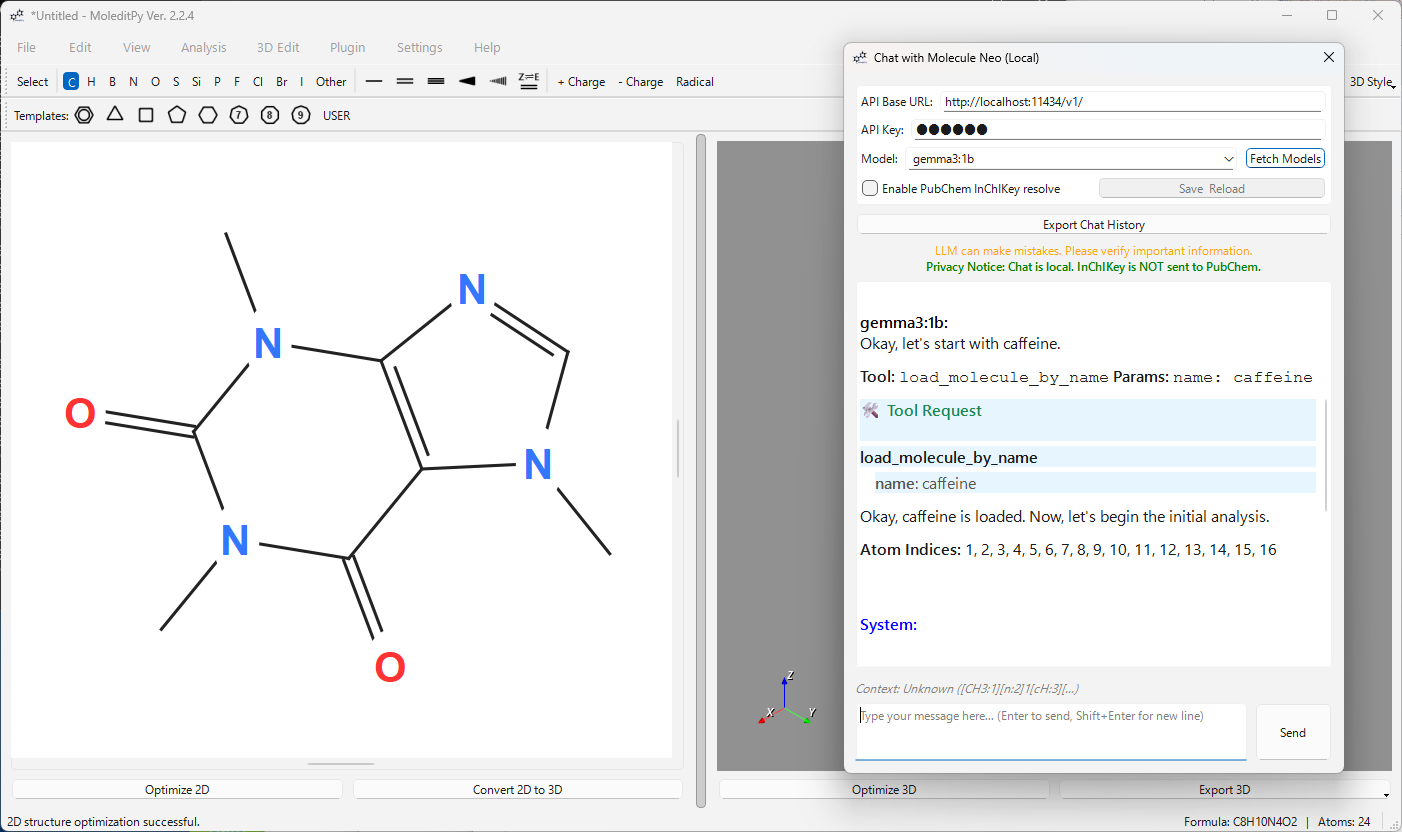
Chat with Molecule Neo (Local) is a plugin for MoleditPy that enables an integrated AI chat experience using local Large Language Models (LLMs) via an OpenAI-compatible API (like Ollama).
It allows you to chat with an AI about the molecule currently open in the editor. The plugin automatically injects the molecule’s SMILES string into the conversation context, allowing the AI to understand and manipulate the chemical structure. It also integrates with PubChem to resolve InChIKeys to common names if enabled.
Features
- Local AI Privacy: Run the AI model entirely on your machine, ensuring that your chat data and confidential information remain local and secure.
- Context-Aware: Automatically detects the current molecule (SMILES) and user selection.
- AI Capabilities: The AI can perform actions like applying transformations, highlighting substructures, and calculating descriptors.
- PubChem Integration: Resolves InChIKeys to common names using PubChem (only the InChIKey is sent externally) if enabled.
Requirements
- MoleditPy (Main Application)
- Python Packages:
rdkitPyQt6openaimatplotlibmarkdown
Install the required Python package:
pip install openai matplotlib markdown
Setup Guide: Using with Ollama
This plugin is optimized for use with local runners like Ollama.
1. Install Ollama
Download and install Ollama from ollama.com.
2. Pull a Model
Open your terminal or command prompt and pull a capable model.
ollama pull llama3
3. Start Ollama Server
Ensure the Ollama server is running. By default, it runs at http://localhost:11434.
ollama serve
4. Configure the Plugin
- Open MoleditPy and launch the Chat with Molecule Neo (Local) plugin.
- In the settings panel:
- API Base URL: Set to
http://localhost:11434/v1 - API Key: Enter any string (e.g.,
ollama). The local server usually ignores this, but the client requires a value. - Enable PubChem InChIKey resolve: Check this box if you want to enable automatic name resolution via PubChem (requires internet).
- API Base URL: Set to
- Click Fetch model.
- Select your model (e.g.,
llama3) from the dropdown list. - Click Save & Reload.
Troubleshooting
- “Connection Refused”: Make sure Ollama is running (
ollama serve). - “Model not found”: Run
ollama listin your terminal to see available models and ensure you have pulled the one you are trying to use.